Practical help for getting the most from your payment setup — starting with how to pull and prepare the merchant statement we need for your free audit.
How to get a PDF copy of your monthly merchant statement.
Most providers supply you a monthly statement or invoice either by email or via an online portal or app. We’ve put together a quick, provider-by-provider guide for the quickest way to download a PDF statement — covering the major UK payment providers, with a catch-all if yours isn’t listed.
How to remove password protection from your statement.
Some providers supply statements as password-protected PDFs. Once you open the file with its password, making an unlocked copy to upload is quick. Only remove protection from statements you’re authorised to access.
Why your statement might be locked
Providers password-protect statements for security. The password is usually in the covering email, or set to something like your Merchant ID, business postcode, or account number — check the original email or your online portal. If you can open and read the file, you already have what you need to make an unlocked copy.
Quickest fix — “print” it to a new PDF (Windows / Chrome / Edge)
Open the statement and enter its password so it’s on screen. Then choose File › Print (or Ctrl + P), and for the printer pick “Save as PDF” or “Microsoft Print to PDF”. Save it — the new file opens without a password.
On a Mac (Preview)
Open the statement in Preview and enter the password. Choose File › Export as PDF (and make sure the “Encrypt” option is unticked), then save. The exported copy has no password.
In Adobe Acrobat / Reader
Open the file with its password. In Acrobat, the simplest route is again File › Print › “Save as PDF”. (In paid Acrobat you can also use File › Properties › Security and set security to “No Security,” which needs the document’s permissions password.)
If you don’t know the password
It’s almost always in the original email from your provider, or based on your Merchant ID / postcode / account number. If you still can’t find it, contact your provider’s support and ask them to confirm it or resend an unlocked copy — see the provider guide above for support numbers.
Or just send it as it is
You don’t have to unlock it yourself. Upload the protected statement and tell us the password in your covering note, or ask your provider for an unlocked copy — whichever is easier. We’ll take it from there.
03 / 04
EPOS integration guide
Do you need integrated payments?
Integrated payments link your card machine to your EPOS, so every sale passes through automatically with nothing keyed in by hand. But it usually ties you into just one or a few providers, so it’s a trade-off with cost. Here’s how the two options compare, so you can decide what fits your business best.
Integrated paymentsYour card machine is connected to your EPOS
Pros
No re-keying the amount — fewer mistakes and faster service
End-of-day cash-up is easier; takings and the EPOS already agree
Unlocks pay-at-table, split bills, tabs and tips through the till
Cleaner reporting, with payments tied to items and staff
Cons
More to set up, and another thing that can break
Can tie you to specific hardware or a single provider
Some EPOS push their own payments — which can mask an uncompetitive rate
Usually a separate contract — watch for early-exit fees
Standalone card machineA separate machine; the amount is keyed in by hand.
Pros
Cheaper and simpler — less to set up, less to go wrong
Flexible — not tied to your EPOS or one provider, easy to switch
Works anywhere, including markets and pop-ups
Keeps taking payments even if your till is down
Cons
Amounts keyed by hand — slower and more error-prone
Reconciliation is manual; takings won’t match the till automatically
No pay-at-table, integrated tipping or split bills
Less customer and sales insight linked to payments
EPOS integration and competitive payment processing rates are two different things — and they’re separable. If you’re weighing it up, send a recent statement and we’ll benchmark the payments side on its own.
04 / 04
EPOS & App guide
EPOS, Loyalty, & Tipping.
Card terminals are now also customer engagement and business insight tools. These are three add-ons we sometimes flag during an audit or integration review — one puts loyalty on the card itself, one turns your terminal into a customer-insight tool, and one handles cashless tipping. None is essential; we’ll only ever suggest one where it genuinely fits.
Integrated Epos
Epos Now
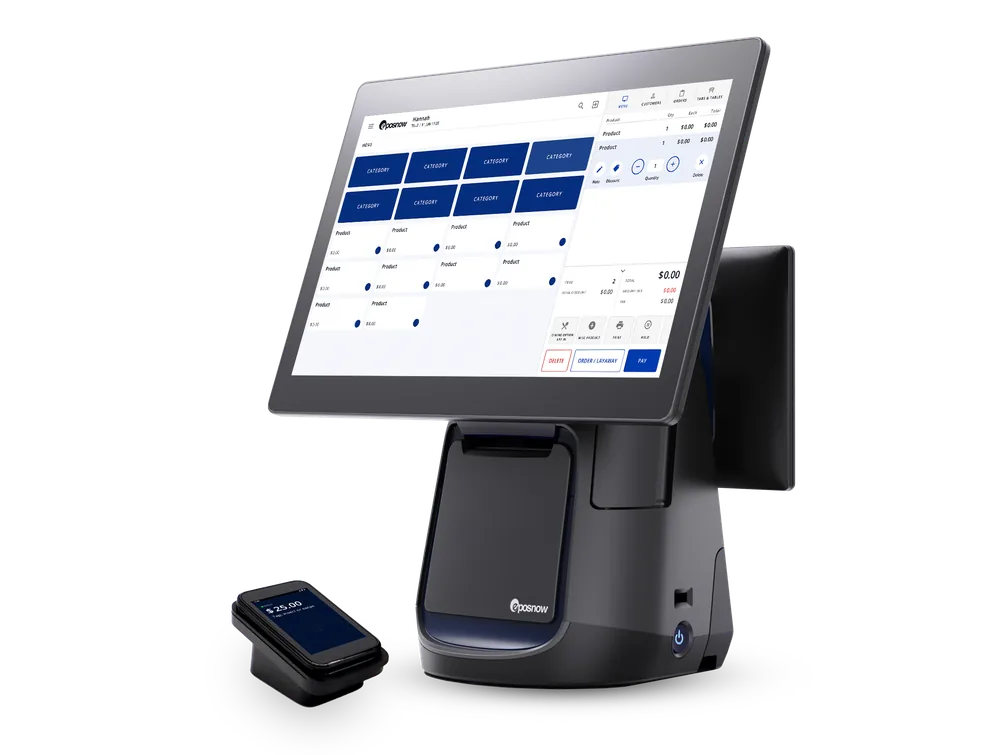
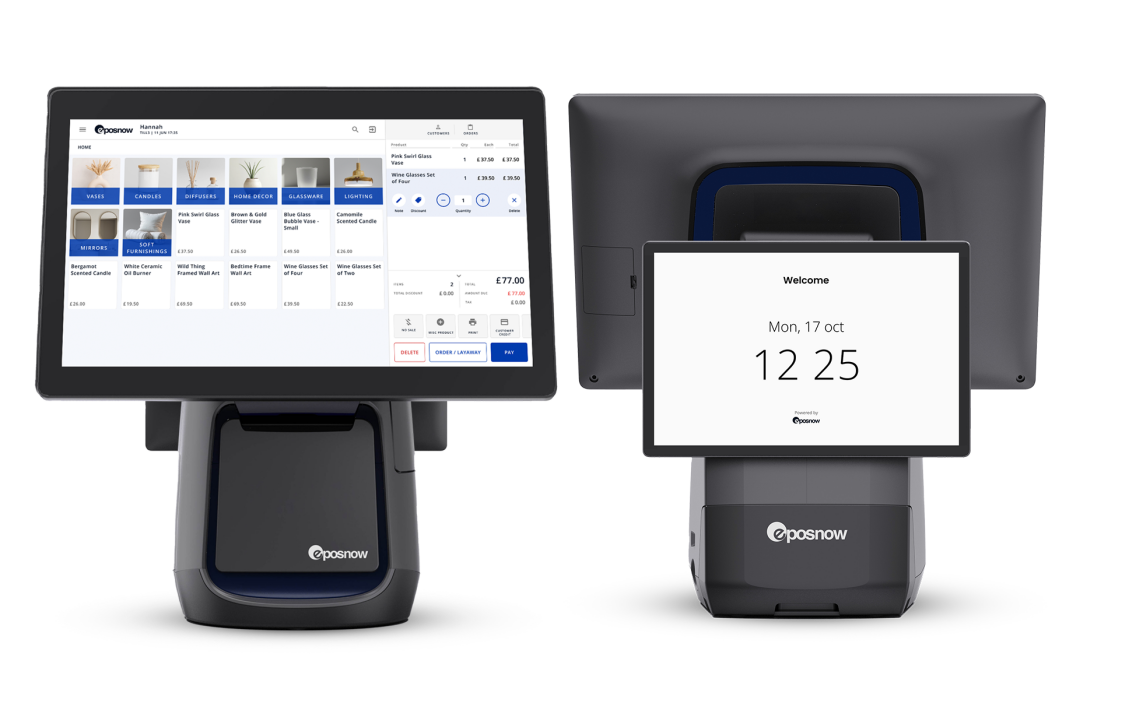
A complete EPOS and till system for hospitality and retail. It runs front-of-house, stock and reporting in one place — and can integrate your payments so every sale flows through automatically.
Runs tills, stock, staff and reporting in one place
Integrates payments so amounts are never re-keyed
Add-ons for bookings, loyalty and accounts
Scales cleanly across one site or many
Card-linked loyalty
Payment Loyalty
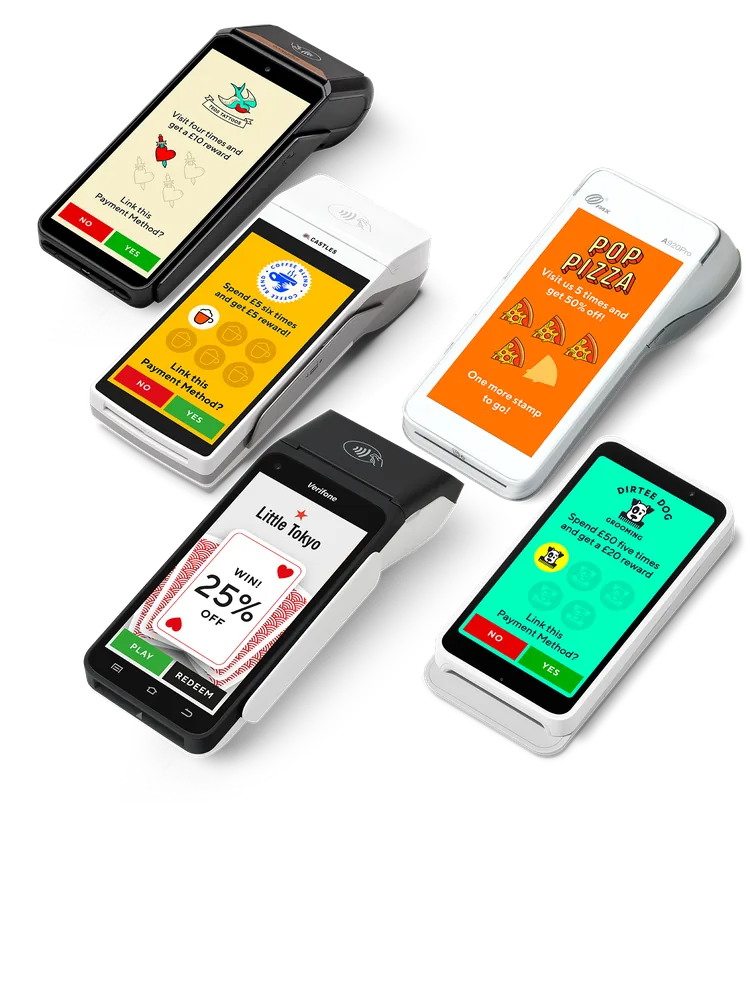
Loyalty that runs on the card machine itself. Customers earn rewards just by paying with their usual card — no separate loyalty card, no app to download, and nothing to sign up for at the till.
Almost no friction, so take-up is far higher than paper stamp cards or app schemes
Customers simply tap, collect and go
A simple, automatic reason for people to come back
Runs on the smart terminal you already use
Customer insight
Zeal
Turns your existing card machine from a ‘blind’ terminal into a ‘smart’ one — it recognises customers, runs loyalty (or links to your existing programme), and feeds back real insight, with no new hardware.
Identifies new and returning customers as they pay
Offers loyalty, or links your existing programme for seamless redemption
Becomes a data engine — customer-behaviour insight physical shops rarely get
Works with your existing card machine
In a Zeal case study, burger brand BRGR saw a 91% rise in returning customers, 55% more new customers and 25% more frequent visits within six months.
Cashless tipping
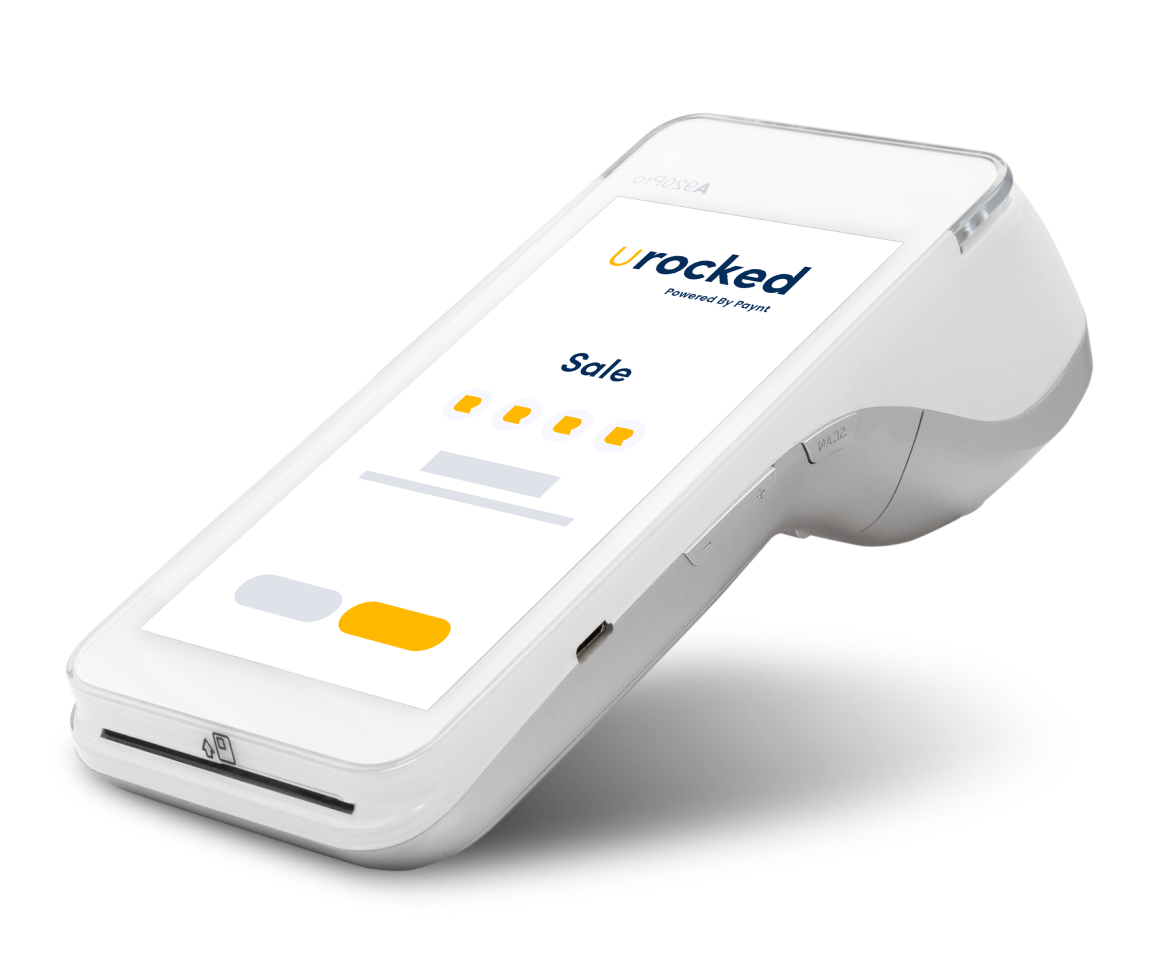
uRocked
A cashless, fully compliant tipping platform. Customers tip by tap, click or scan, and 100% of tips go straight into staff’s digital wallets — with no employer involvement in the money and no admin for you.
100% of tips reach staff — individual or pooled team tips, with a simple sign-up
Keeps tips flowing as cash use falls — often more tips, and happier staff
Built around the UK tipping rules in force since 1 Oct 2024 (100% to staff, fair allocation, record-keeping)
No admin cost to the business; free for staff (a small service fee is paid by the customer)
No obligation · No pressure
Ready for a payment market review?
We use our proprietary AI tool to audit, benchmark, and advise whether to stay, switch, or renegotiate. At no cost to you.